Roo Hospital App Features
Introduction
Welcome to the Roo App! With the app you're able to post new Vet and Tech shifts, check your upcoming schedule, confirm requested shifts, and message the Vets and Techs directly from your mobile device.
See below to learn more about how you can use the Roo app to manage your shifts on the go.
🏠 Home Screen
When you log in, you'll see your Home page, which will show you pending shift requests from Vets and Techs as well as your upcoming schedule of confirmed shifts. From this screen, you can navigate to your schedule, your message inbox, the account tab, or start a new shift post with the (+) button.
Posting a new Vet or Tech shift
To Post a new shift, start by tapping the (+) button. Then, select the day(s) you need coverage as well as the location for coverage (if you manage more than one location) and whether you want to create a new Vet shift, Tech shift, or use a template for your shift. Then, fill out the shift details, including start and end times for your Vet or Tech, the lunch break, and what kind of work they'll be performing. For Techs, you'll also need to select what Tier (Tech skillset) you require.
Then, you'll be able to review the recommended price for your shift as well as the details. If you want to edit or update your shift details, tap the back arrow to make changes. If you want to adjust the price you can tap the pencil icon to bring up the Edit Price screen and set a price that works for your budget, tap save to confirm your desired price.
When you are satisfied with your shift details and price, tap Post Shift!
Reviewing shift requests & confirming a shift
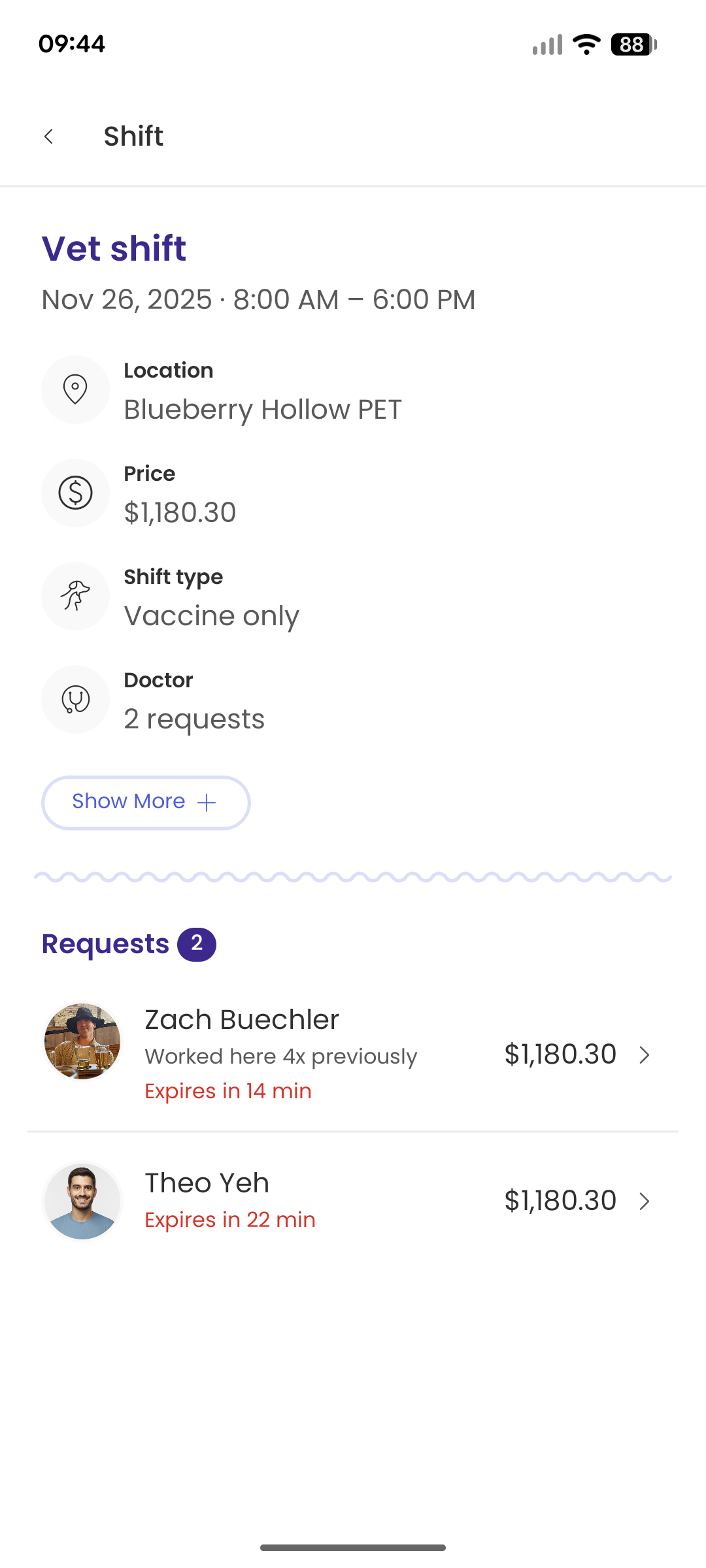
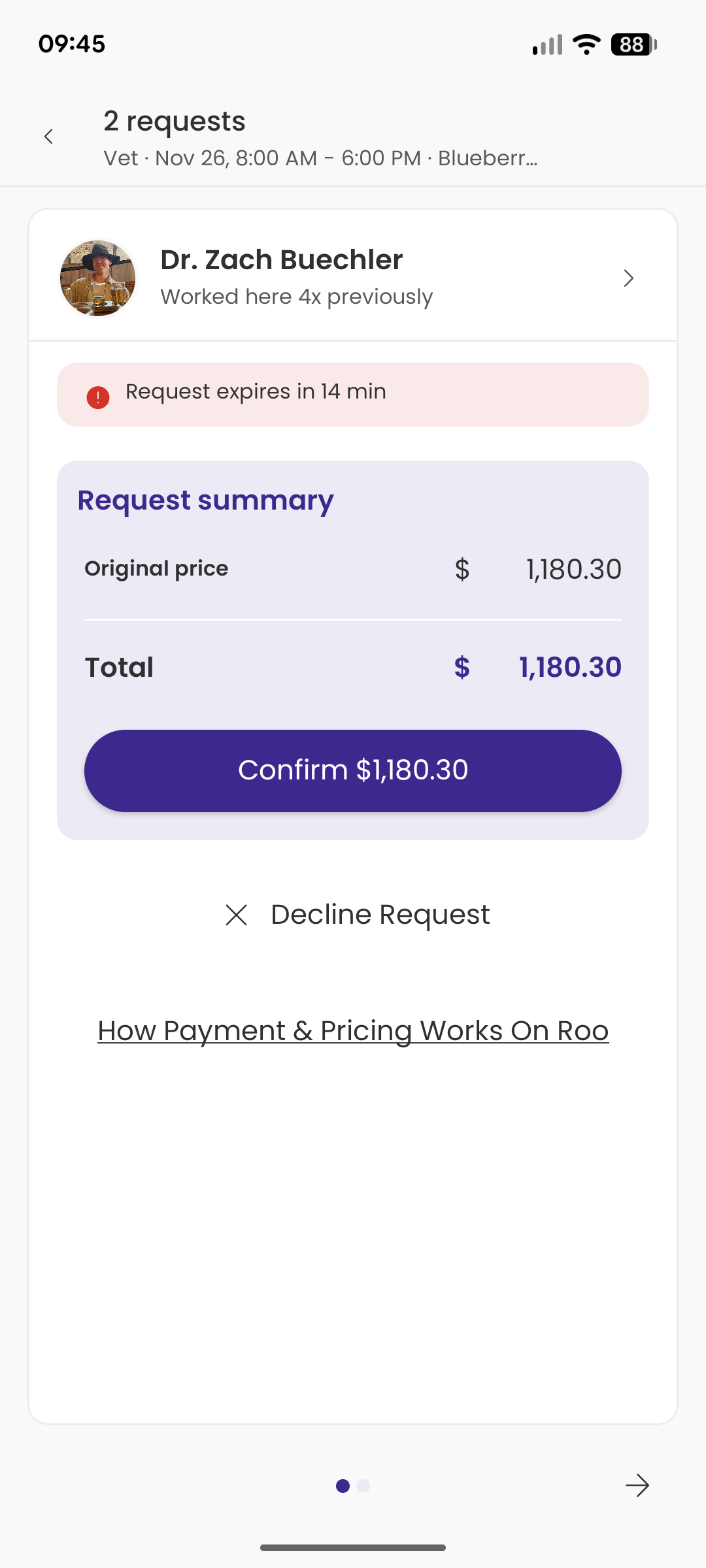
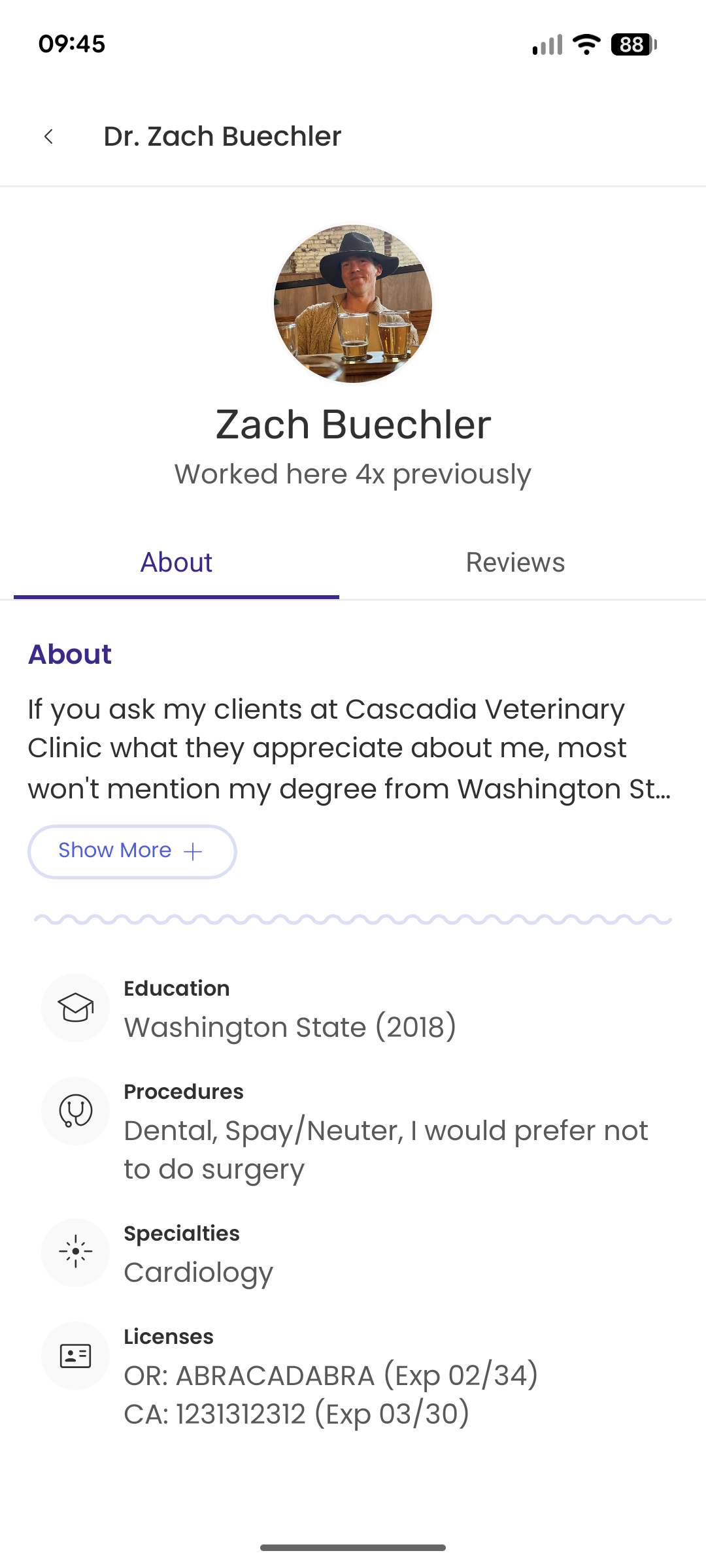
To review and confirm a Shift Request, tap on a shift to see any pending requests. On this screen, you can review the Vet or Tech’s profile and see any adjustments they have requested to start/end times, surgery requests, or the shift’s price.
When you have chosen someone to cover your shift, tap Confirm to make it official!
Renew Expired Requests
If a shift request expires, you can now renew the request by tapping on the shift request and then tapping Renew Request. This will allow you to send a message with the ability to instantly book the shift to the Vet or Tech.
Viewing your upcoming schedule
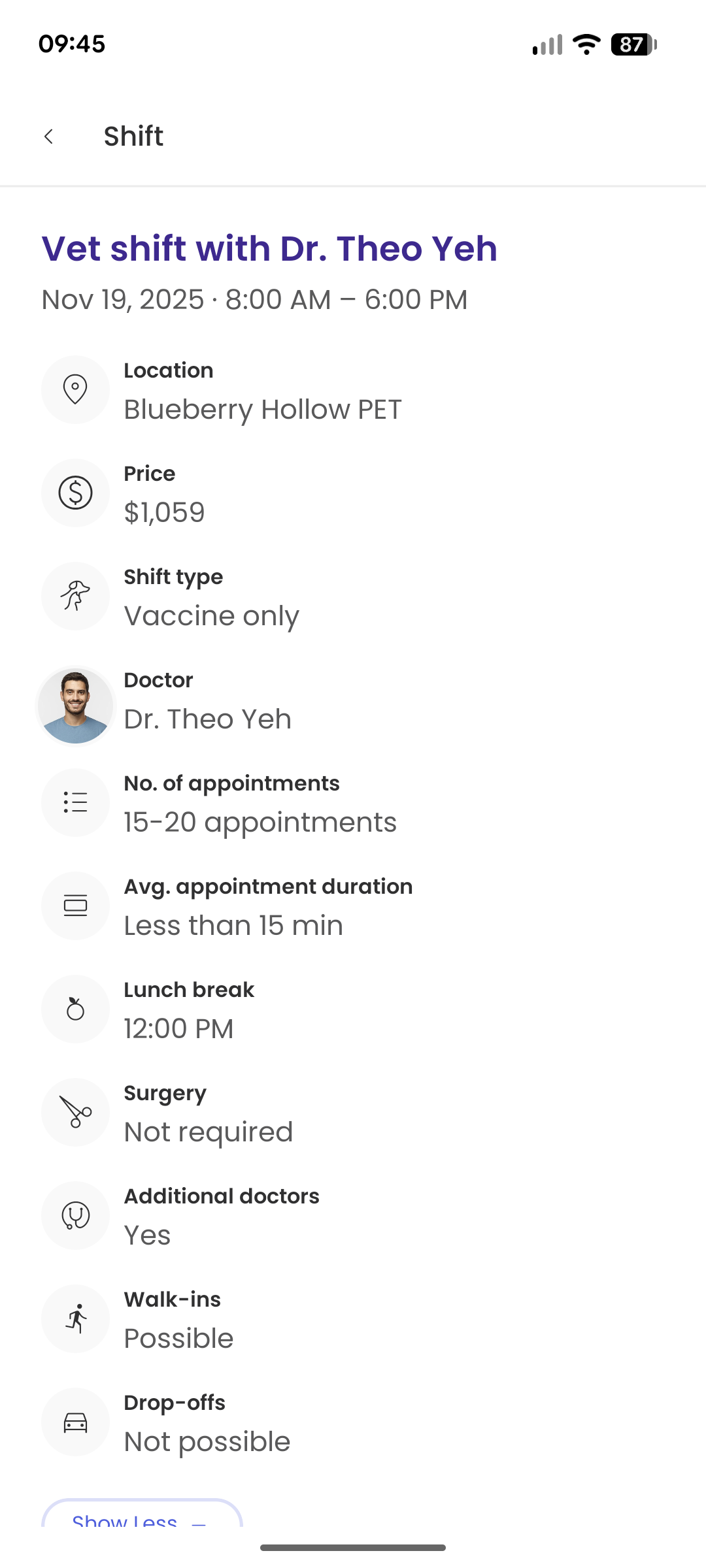
From your Home page you can tap on any shift to open a screen with the full details of that shift and the confirmed Vet or Tech. From this screen you can also send messages to the confirmed Vet or Tech.
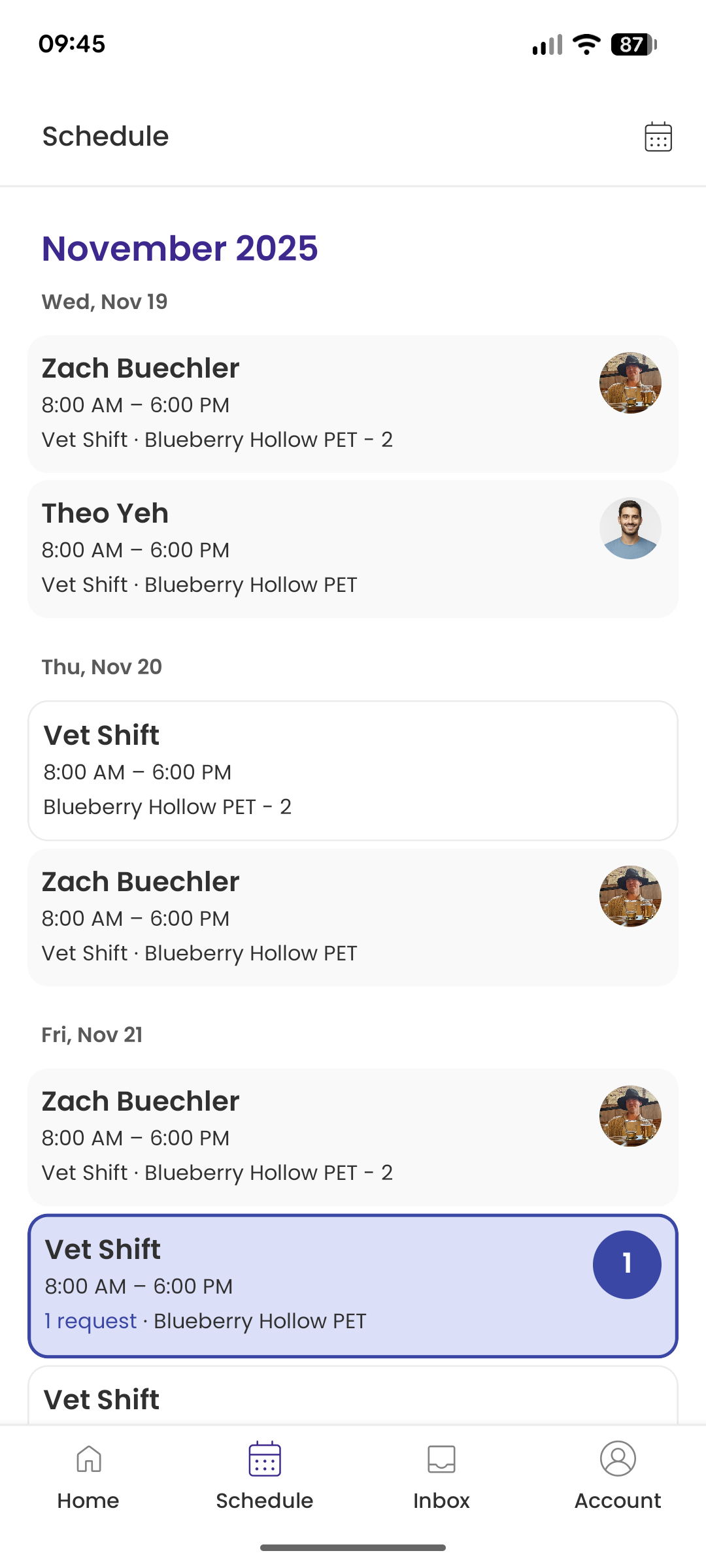
You can also go to your Schedule page to see a full list of your shifts. This includes past fulfilled shifts as well as future shifts that are Open, have pending requests, or have a confirmed Vet or Tech.
Messaging Vets & Techs
You can send messages to Vets or Techs in two ways. Tap on the Inbox icon at the bottom of the app to send a new message or see any previous messages.
You can also message confirmed Vets and Techs from any confirmed shift’s details page. Simply tap the Message button to start a conversation with that Vet or Tech.